
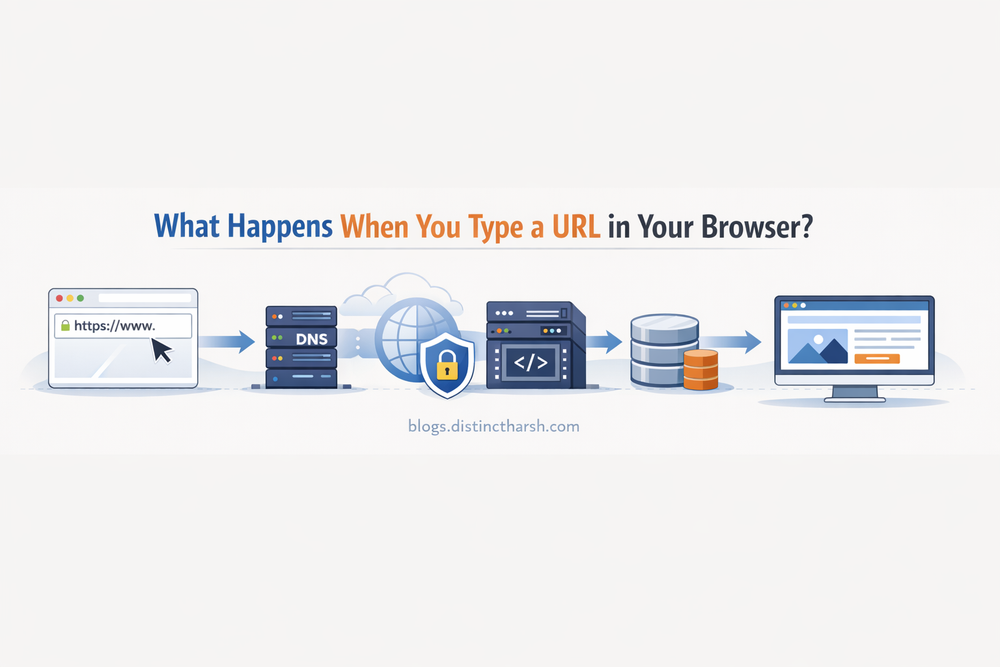
What Happens When You Type a URL in Your Browser?
Ever wondered what actually happens behind the scenes when you type a website address like https://blogs.distinctharsh.com and hit Enter?
👉 It looks simple. 👉 It feels instant. 👉 But internally… your computer goes on a mini adventure trip across the internet 🌍.
It feels instant. But in reality, dozens of steps happen in milliseconds involving your browser, operating system, network, DNS servers, web servers, and databases.
This blog explains the complete journey of a URL in a simple, practical, and beginner‑friendly way — no heavy theory, no jargon overload.
Step 1: You Type a URL and Press Enter ✍️
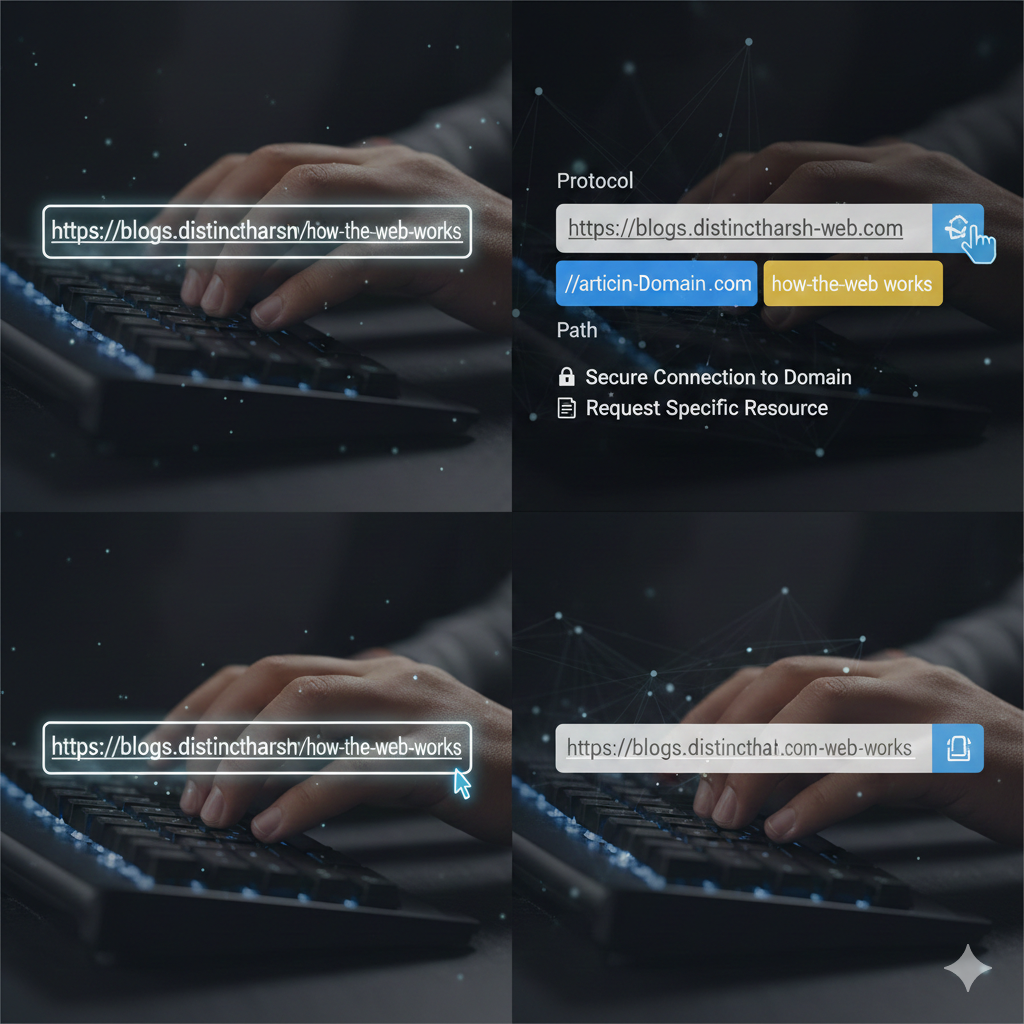
🖼️ Suggested Image/GIF: Person typing on keyboard / browser address bar animation
Example:
https://blogs.distinctharsh.com/articles/how-the-web-works
Your browser immediately breaks this URL into parts:
- Protocol →
https - Domain →
blogs.distinctharsh.com - Path →
/articles/how-the-web-works
This tells the browser:
“I need a secure connection to this domain and want this specific resource.”
Step 2: Browser Checks Its Cache (Shortcut Attempt 🧠)
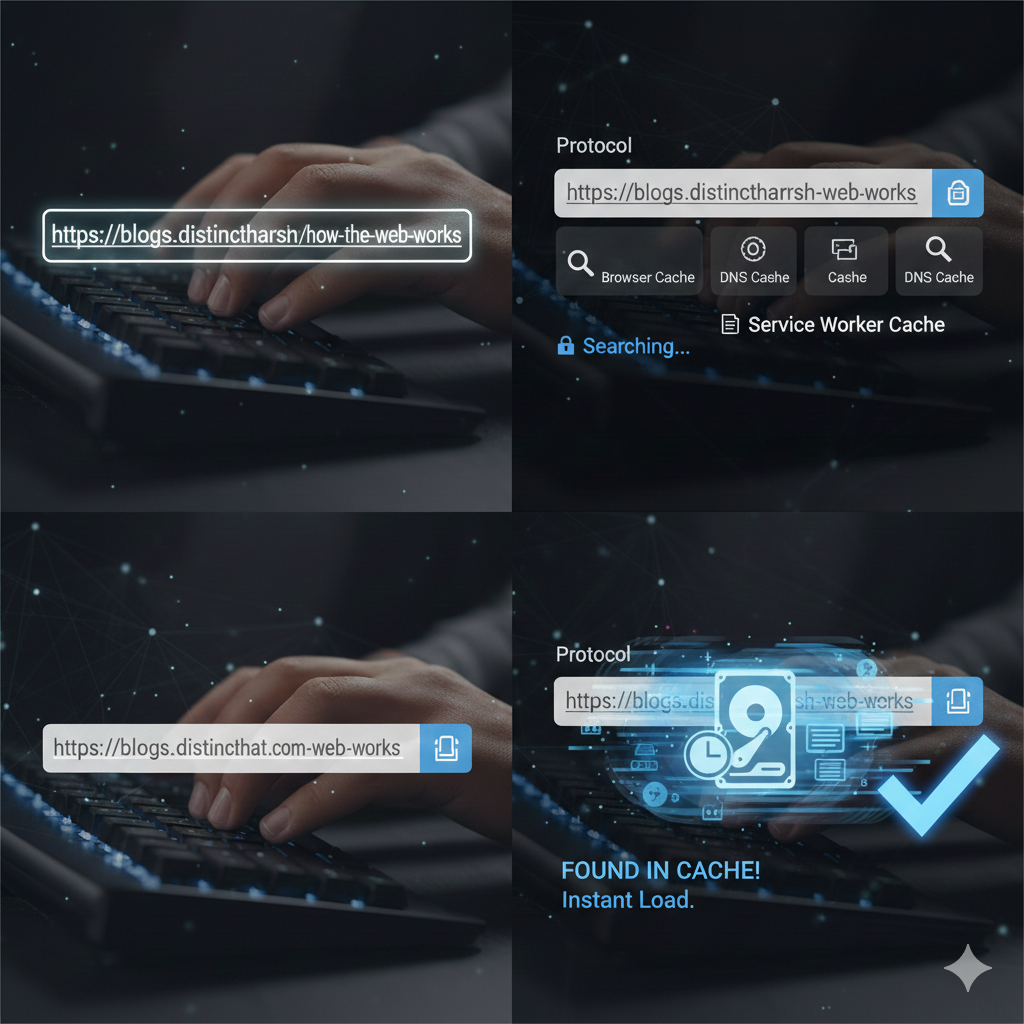
🖼️ Suggested Image/GIF: Browser searching files / fast-forward animation
Before going outside your system, the browser checks:
- Browser cache
- DNS cache
- Service worker cache (if any)
If the response is cached and still valid 👉 done instantly.
If not 👉 move to the network.
Step 3: DNS Lookup – Finding the Server Address 📖
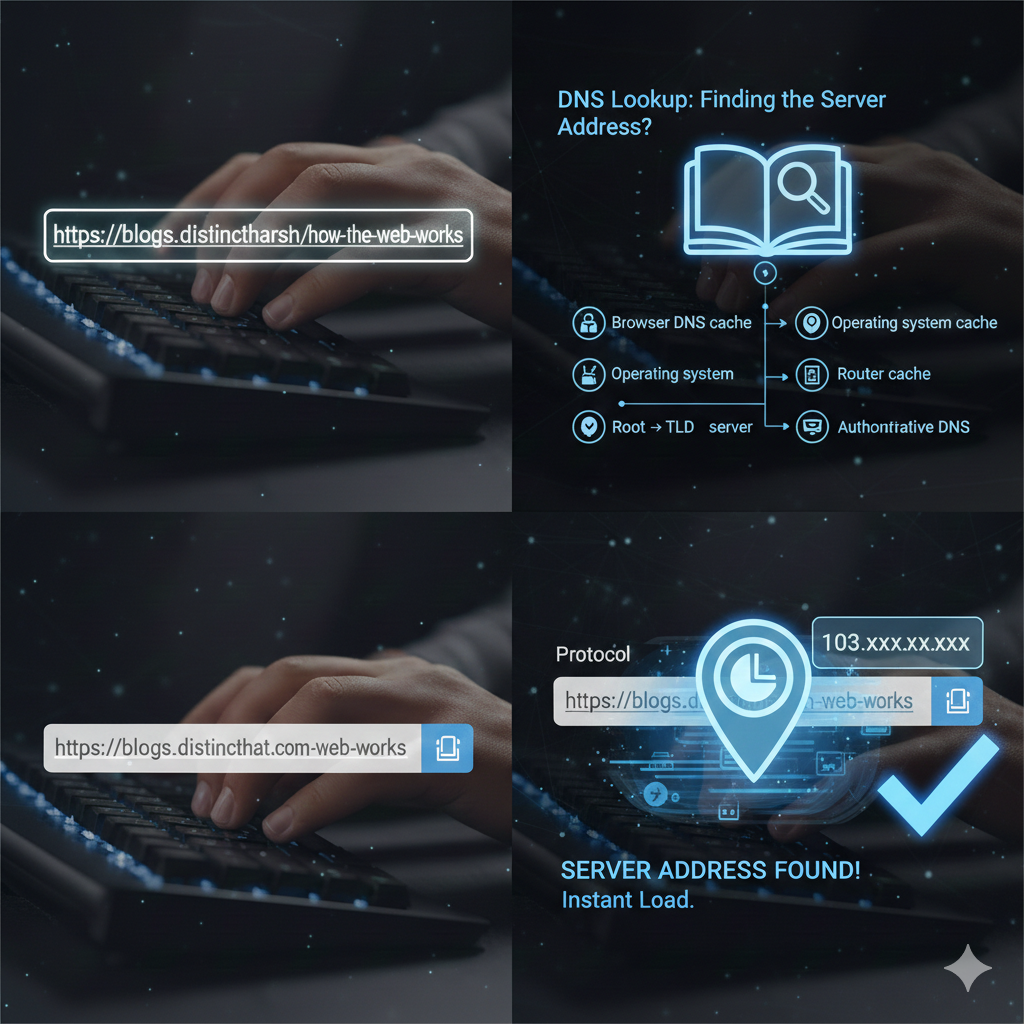
🖼️ Suggested Image/GIF: Internet phonebook / searching map animation
Computers don’t understand domain names. They understand IP addresses.
So your browser asks:
“What is the IP address of blogs.distinctharsh.com?”Lookup order:
- Browser DNS cache
- Operating system cache
- Router cache
- ISP DNS server
- Root → TLD → Authoritative DNS
Finally, DNS returns something like:
103.xxx.xxx.xxx
Now the browser knows where the server lives.
Step 4: TCP Connection Is Established 🤝
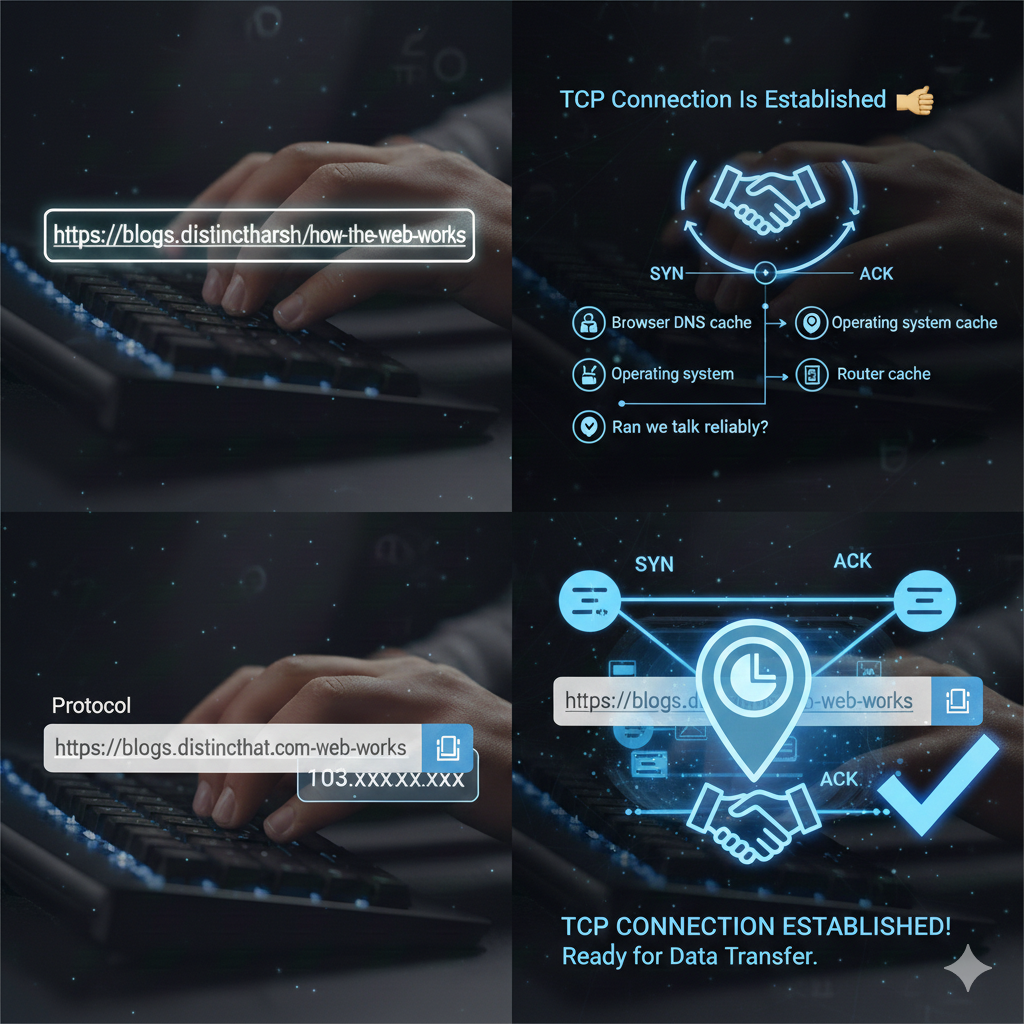
🖼️ Suggested Image/GIF: Two computers shaking hands / connection animation
Your browser now opens a connection to the server IP.
This involves:
- SYN
- SYN‑ACK
- ACK
(Yes, the famous TCP 3‑way handshake)
Purpose:
“Can we talk reliably?”
Step 5: HTTPS Security Handshake (Very Important 🔒)
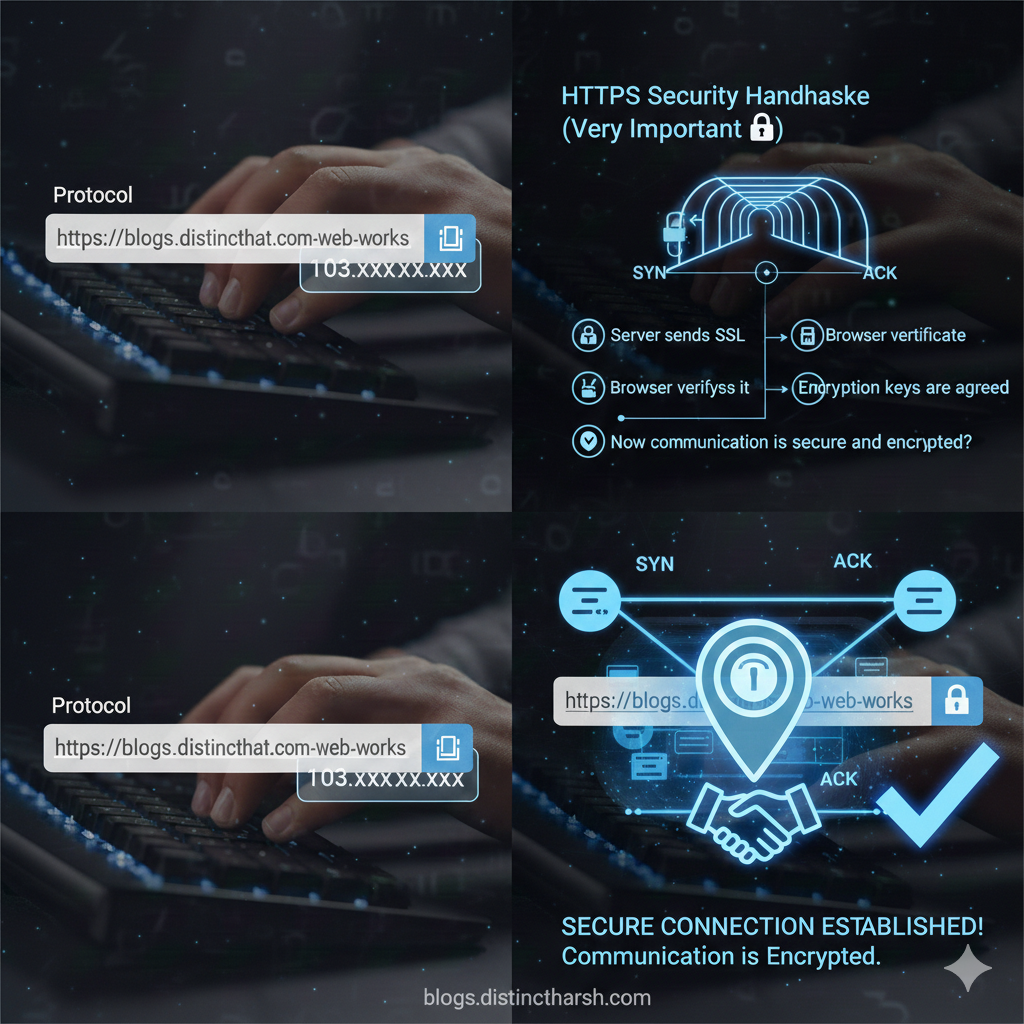
🖼️ Suggested Image/GIF: Lock closing / secure tunnel animation
Because the URL uses HTTPS, a security handshake happens:
- Server sends SSL certificate
- Browser verifies it
- Encryption keys are agreed
Now communication is secure and encrypted.
Step 6: Browser Sends the HTTP Request 📤
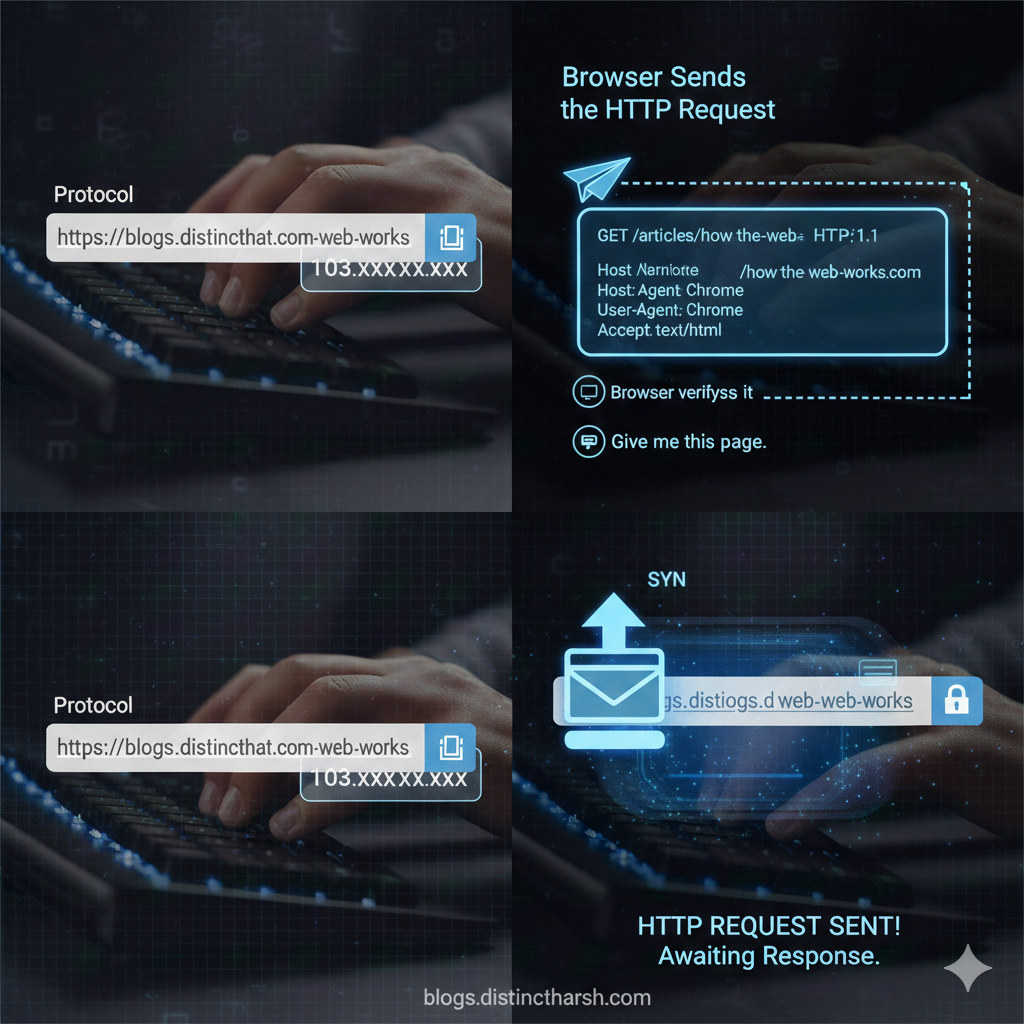
🖼️ Suggested Image/GIF: Message being sent / paper plane animation
Example request:
GET /articles/how-the-web-works HTTP/1.1Host: blogs.distinctharsh.comUser-Agent: ChromeAccept: text/html
This is the browser saying:
“Give me this page.”
Step 7: Request Reaches the Web Server 🖥️
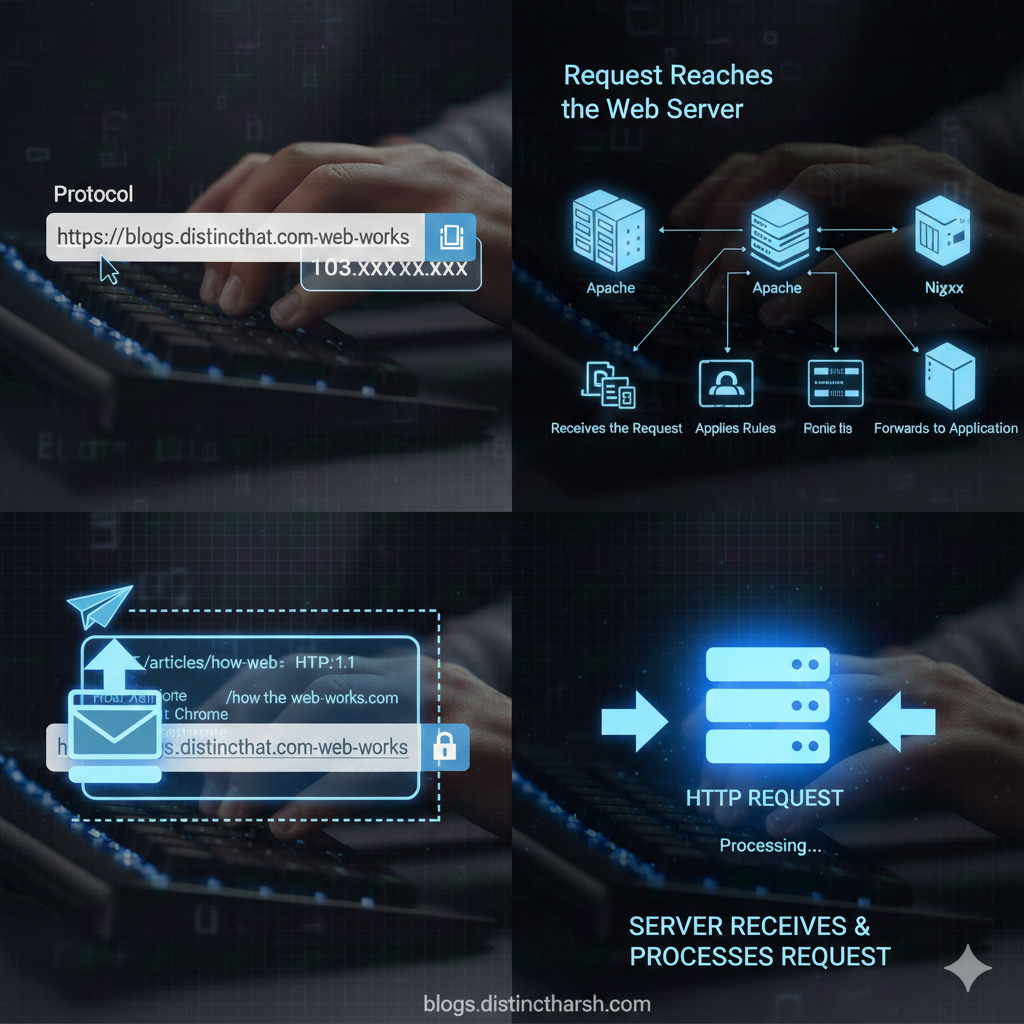
🖼️ Suggested Image/GIF: Server racks / data center animation
The server could be:
- Apache
- Nginx
- Cloud load balancer
The web server:
- Receives the request
- Applies rules
- Forwards it to the application (if dynamic)
Step 8: Application Code Runs ⚙️
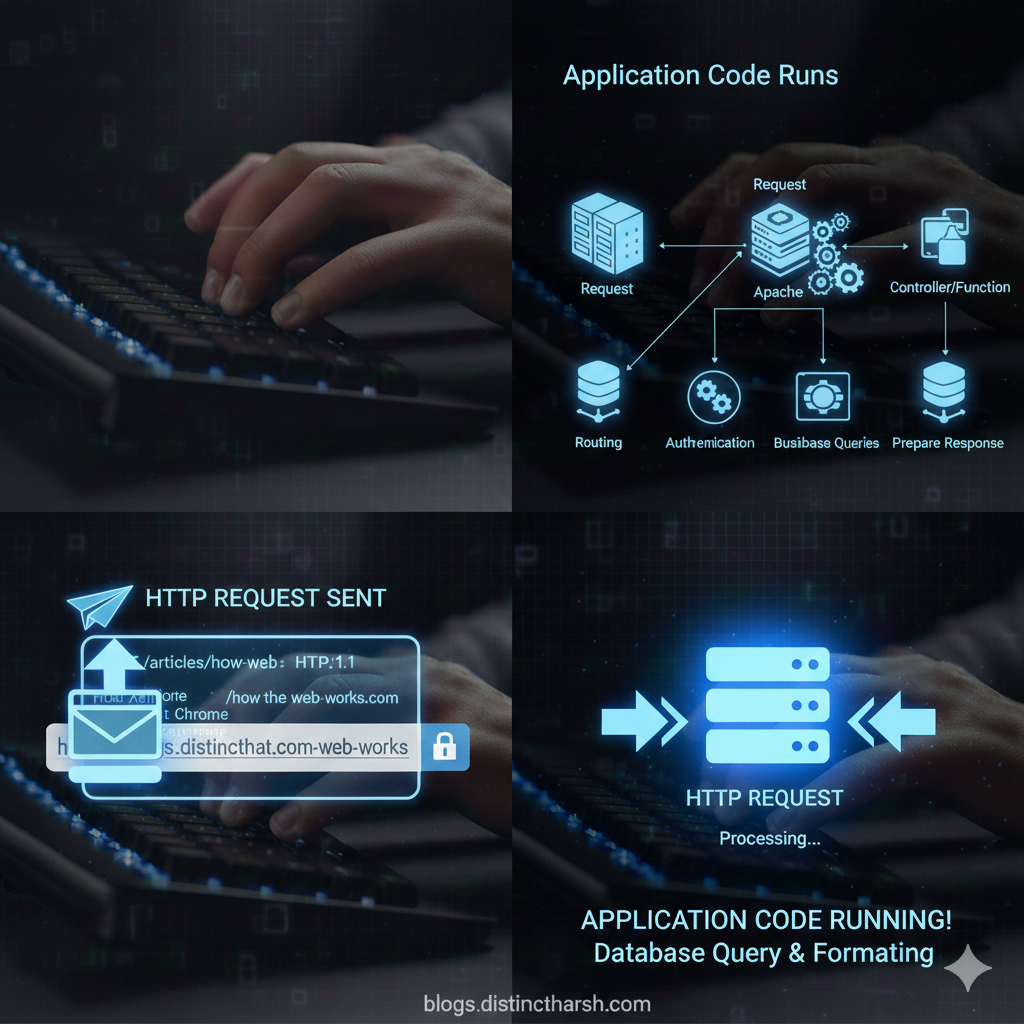
🖼️ Suggested Image/GIF: Gears turning / code executing animation
Now your backend logic starts:
- Routing decides which controller/function handles it
- Authentication checks
- Business logic runs
- Database queries execute
Example:
Fetch blog post → format data → prepare response
Step 9: Database Interaction (If Needed 🗄️)
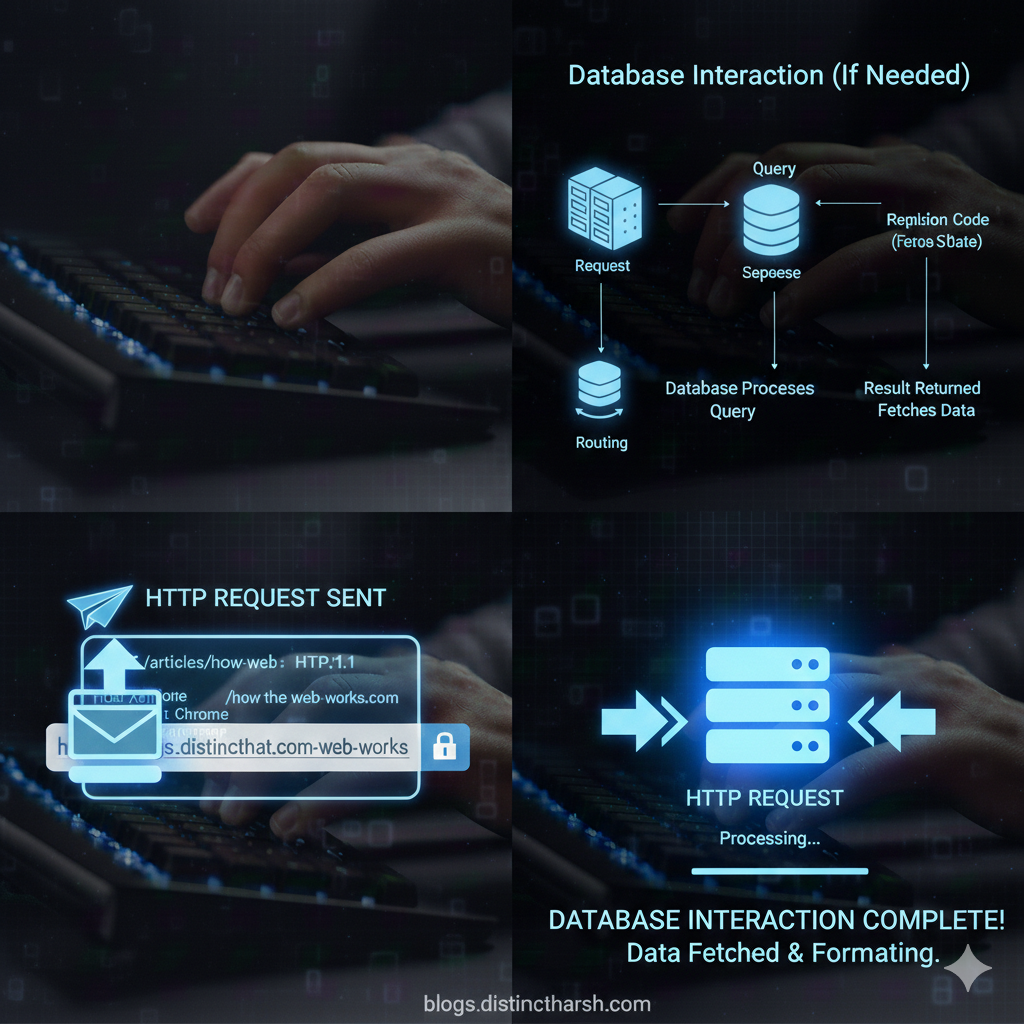
🖼️ Suggested Image/GIF: Database cylinder / data fetching animation
If data is required:
- Query sent to database
- Database processes it
- Result returned to application
Efficiency here decides speed vs slowness.
Step 10: Server Sends the Response 📦
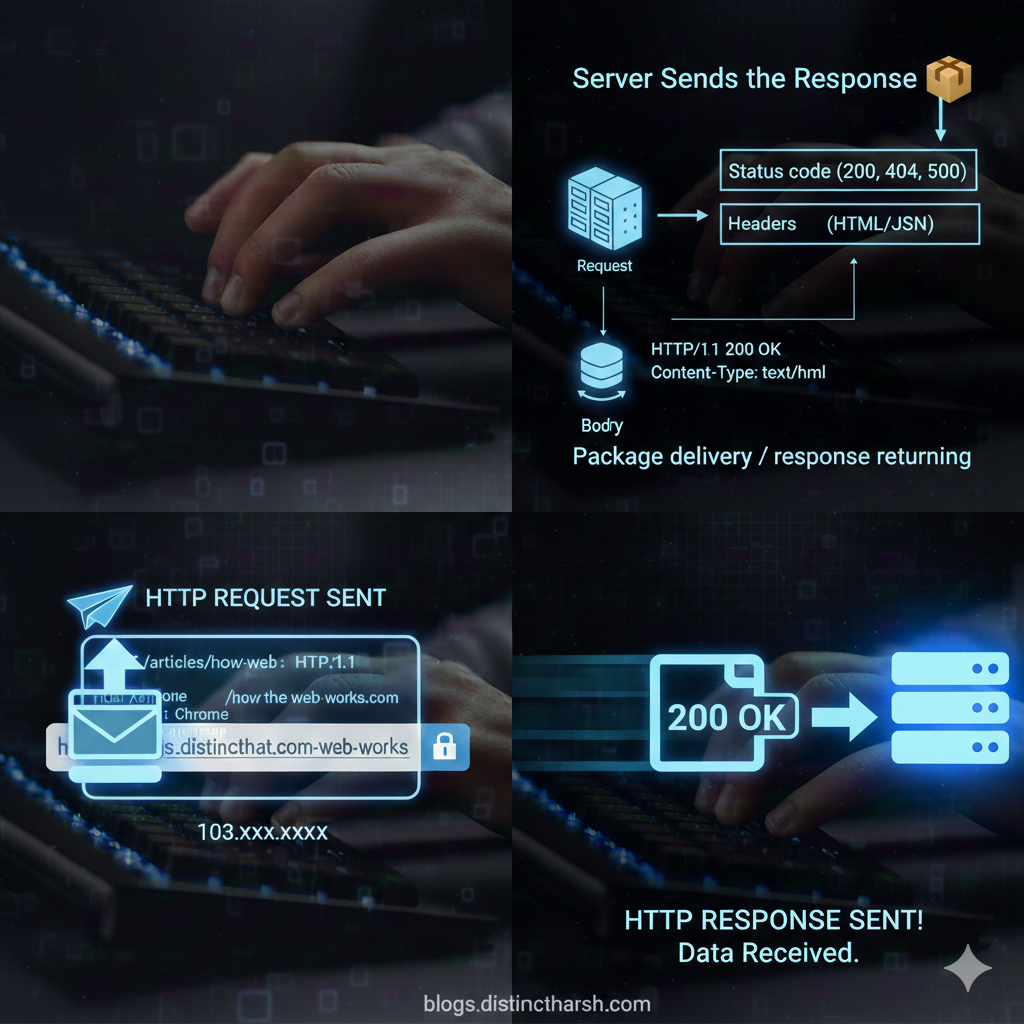
🖼️ Suggested Image/GIF: Package delivery / response returning animation
The server sends back:
- Status code (200, 404, 500)
- Headers
- Body (HTML / JSON)
Example:
HTTP/1.1 200 OKContent-Type: text/html
Step 11: Browser Renders the Page 🎨
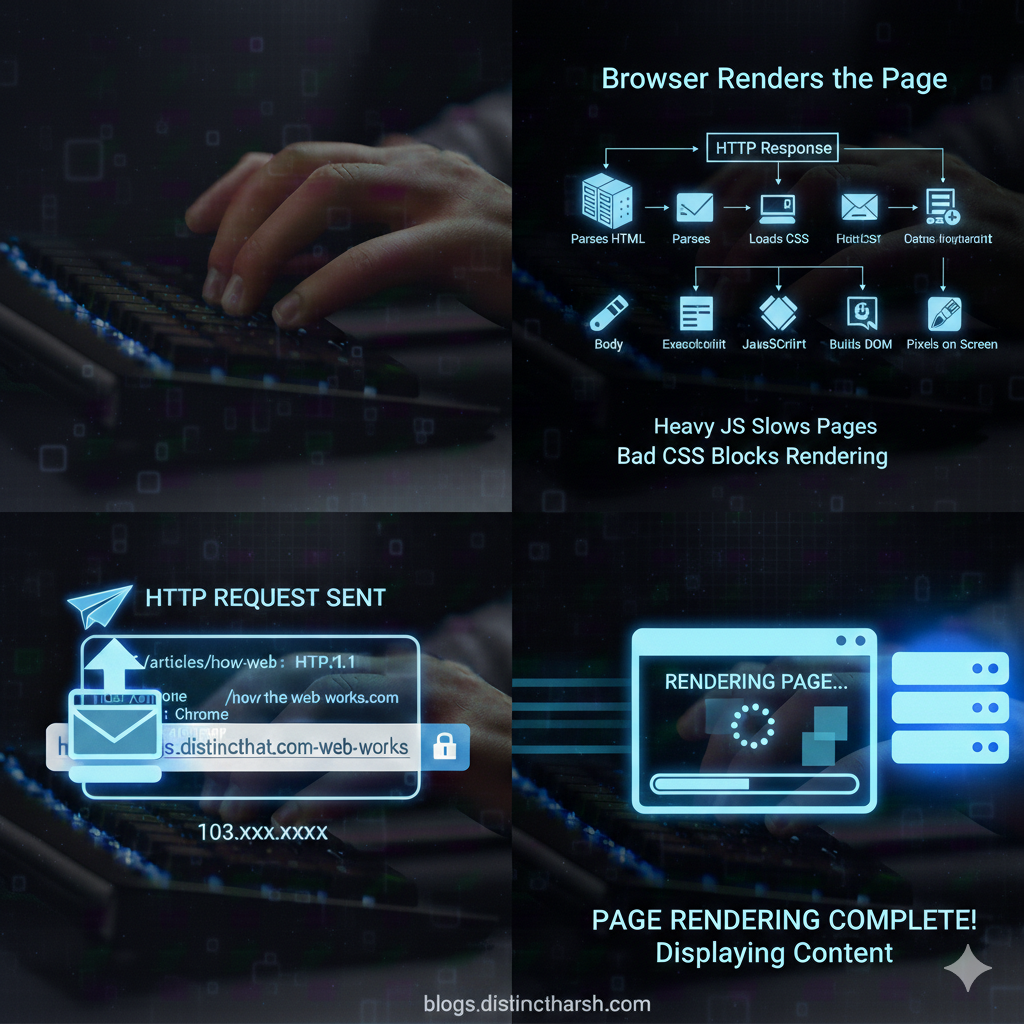
🖼️ Suggested Image/GIF: Page loading / painting pixels animation
Now the browser:
- Parses HTML
- Loads CSS
- Executes JavaScript
- Builds DOM
- Paints pixels on screen
This is why:
- Heavy JS slows pages
- Bad CSS blocks rendering
Step 12: Page Is Visible to You 🎉
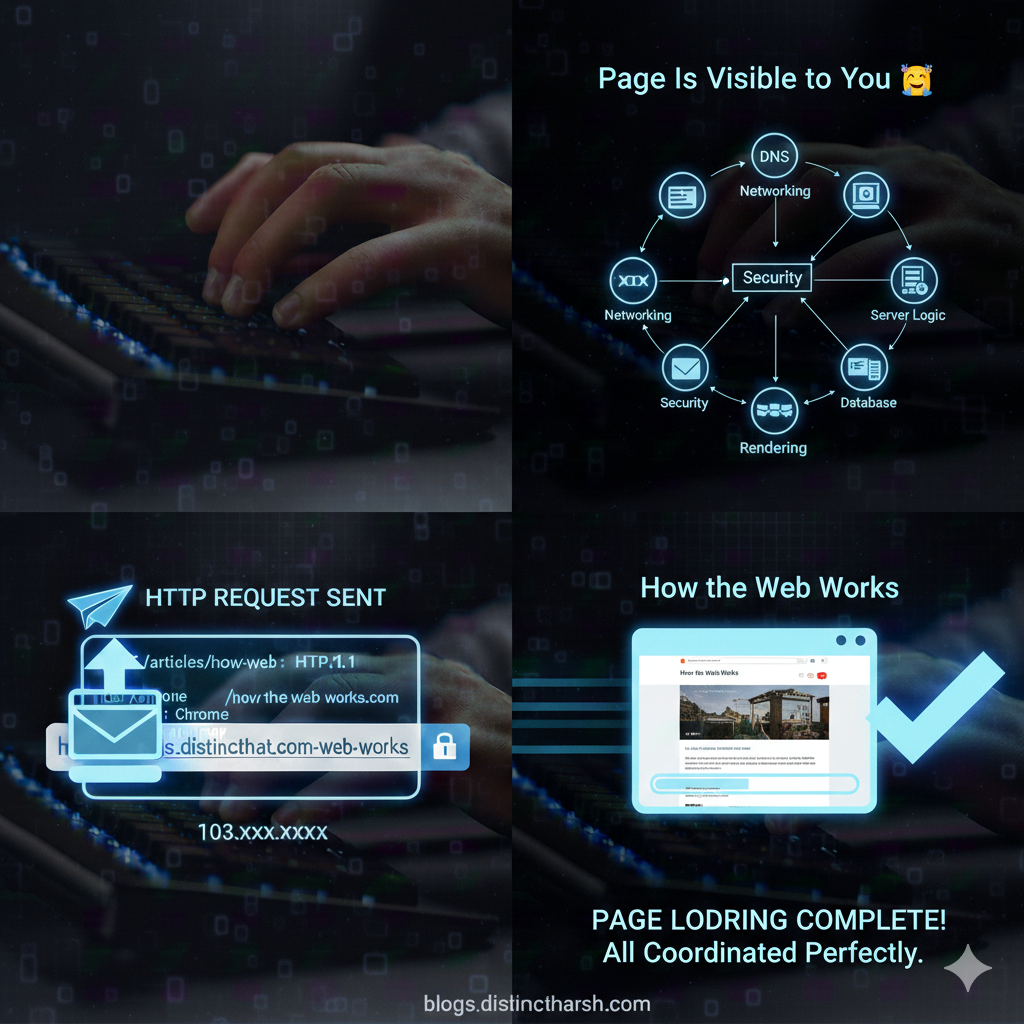
🖼️ Suggested Image/GIF: Website appearing / celebration animation
What felt like 1 second involved:
- DNS
- Networking
- Security
- Server logic
- Database
- Rendering
All coordinated perfectly.
Common Misconceptions 🤯
(Yes, these are very common — don’t worry 😄)
❌ Browser directly talks to database ❌ Server sends a "page file" ❌ HTTPS just means a lock icon
✔ Reality is much deeper.
Why This Knowledge Matters 💡
This is the difference between:
- ❌ "It’s not working bro"
- ✅ "Ahh, DNS or SSL issue — I know where to check"
Understanding this helps you:
- Debug slow websites
- Fix production issues faster
- Write better backend code
- Become a stronger developer overall
Key Takeaways 🧠
- URLs trigger a complex pipeline
- DNS is critical
- HTTPS is not optional
- Servers don’t magically respond
- Performance depends on every step
Next in This Learning Series
- How Browsers Render Pages
- Sessions vs Cookies vs Tokens
- Why Apps Break in Production
- How Web Servers Handle Traffic
If you found this useful, bookmark it and share it 🚀